
Use the Mega888Go iOS link in Safari. Approve a profile only when you recognise its organization and understand the permissions.
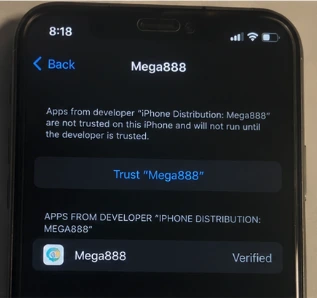
Ready to install on iPhone?
The button opens mega888go.ws/ios/dl/. Return here if you see a certificate error.
Before approving a profile
- Confirm the exact website domain.
- Read the organization name shown in Settings.
- Do not approve unknown device-management access.
- Keep iOS updated and use a device passcode.
Installation steps
- Open the iOS installation link in Safari.
- Read the certificate or profile information.
- Open Settings and review the downloaded profile.
- Approve it only when the organization and purpose match.
- Stop if iOS reports a revoked or unverified developer.
Certificate errors
A certificate can expire or be revoked, causing an app that worked previously to stop opening. Reinstalling the same invalid profile repeatedly will not correct it.
Do not install “certificate fix” tools that request Apple ID credentials, banking information or full remote access.
What iOS is asking you to trust
An iPhone installation may show a developer certificate or configuration profile. These are not the same as an App Store listing. Before approving anything, read the organization name in Settings and check whether the profile asks to manage the device, install certificates or change network settings. If the purpose is broader than installing the app, stop and ask for a clear explanation.
Use Safari for the installation link because other in-app browsers may hide part of the process or fail to hand the profile to Settings correctly. Return to Safari only after you have reviewed the prompt on the device itself.
Why an app can stop opening later
Certificate-based installations can fail after a certificate expires or is revoked. The app may have worked yesterday and still show “Unable to Verify App” today. Repeatedly tapping Trust does not repair an invalid certificate, and changing your Apple ID password is unrelated.
Keep the app in place while you confirm the situation unless the profile looks unfamiliar or requests excessive control. The iOS certificate error guide explains what to record and when removal is the safer choice.
Protect the rest of the iPhone
Use a device passcode, keep iOS current and review installed profiles periodically under Settings. Never give a support contact your Apple ID password, screen-lock code or one-time sign-in number. A helper who asks you to install remote-management software to repair a certificate should be treated as suspicious; compare the request with the fake-support warning signs.
Continue from here
- Return to all Mega888 download options
- Fix an iOS verification or certificate message
- Open the account login guide
- Review the app verification checklist
iPhone and iPad information reviewed 22 July 2026.