
Do not repeatedly trust an invalid profile. Verify the source and wait for an authorized certificate update.
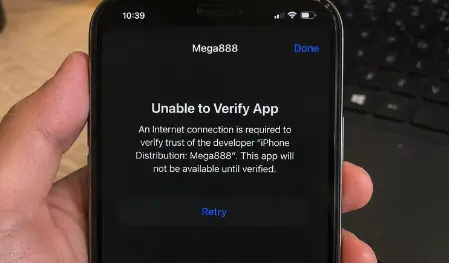
Common messages
- Unable to verify app.
- Untrusted enterprise developer.
- Developer certificate is no longer valid.
- App cannot be installed at this time.
Safer response
- Check whether iOS and the app build are current.
- Confirm the original distribution domain.
- Review the profile organization in Settings.
- Remove an unexplained or revoked profile.
- Wait for a replacement certificate.
Avoid certificate scams
Do not install remote-management tools or share an Apple ID password to fix a certificate. A legitimate guide should not require either.
Identify the message before removing anything
“Untrusted Enterprise Developer” can appear when a profile has not been trusted on that device, while “Unable to Verify App” may appear after a certificate is no longer valid or the device cannot complete verification. Write down the exact wording and check the profile organization under Settings.
Do not assume every certificate with the Mega888 icon is connected to the same distributor. The organization and source domain are more useful identifiers than the artwork.
What may have changed
A certificate can expire or be revoked without any change to the app icon. An iOS update, network restriction or newly installed profile can also affect verification. Check the date, normal network access and current iOS version before reinstalling.
If the certificate is confirmed invalid, wait for a replacement from the same verified download source. Repeatedly installing profiles from search results increases risk and does not repair the original certificate.
Remove profiles you cannot explain
Review what a profile controls before deleting it. An unfamiliar profile that manages the entire device, adds a certificate or redirects network traffic deserves immediate attention. Save a redacted screenshot of the organization name, then remove it if you cannot verify its purpose.
Return to the iPhone installation guide for the expected flow. If a helper requests an Apple ID password or remote management, compare the request with the fake-support warning signs.
Continue safely
- Review app and profile verification
- Choose another support issue
- Troubleshoot an account login
- Contact the Mega888Go team
iOS certificate information reviewed 22 July 2026.