
Confirm the download completed, check Android compatibility, free storage and verify whether another signed version is installed.
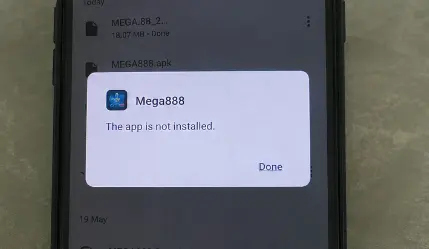
Check in this order
- Confirm the APK has the expected file size.
- Check support for your Android version and processor.
- Make sufficient free storage available.
- Look for an older or differently signed version.
- Download again only from the Mega888Go download link.
Package conflicts
Android may refuse an update when the new APK is signed differently. Confirm the upgrade path and save your legitimate user ID before removing an existing installation.
Security warning versus compatibility error
A compatibility error and a harmful-app warning are different problems. Never treat a malware warning as a routine obstacle.
Check the saved APK before changing settings
Open the browser’s download list and confirm that the file completed normally. A partial download can still appear in storage but will not install. Compare the filename and any published size with the source page, then scan the file. Downloading the same damaged copy several times will not solve a source-side problem.
Use the APK verification guide if the file details are unfamiliar. Do not rename an unrelated file to make it look like an APK.
Storage, Android version and processor
Installation needs more free space than the final app size because Android has to unpack and verify the package. Free space by removing files you recognize, restart the phone and try once more. Also check whether the build supports your Android version and device architecture.
If the device is managed by an employer, school or parental-control profile, installation may be blocked by policy. Do not remove management controls without the owner’s permission.
Handle an existing installation carefully
A differently signed package cannot normally update the copy already installed. Before uninstalling, record the legitimate user ID and confirm the recovery contact. Removing the app does not necessarily remove the remote account, but it can erase saved local details that helped identify it.
Return to the Android download guide for the normal installation sequence. If Android reports that the file is harmful rather than merely incompatible, stop—the security warning is not an installation step.
Related Android help
- Restart from the Android APK guide
- Fix access after installation
- Check a replacement download offer
- Return to all support guides
Android troubleshooting reviewed 22 July 2026.